TIP: To keep things as safe as possible, rely mostly on ESP and only use the more obvious features here and there.
1
Getting Started
Disable Windows Defender
Why is this needed?
Antivirus often flags game cheats as suspicious because they inject code or modify games to enable features like aimbot or ESP. This is normal behavior for all cheat software - not a sign that Noble Cheats is unsafe.
- Open Windows Security
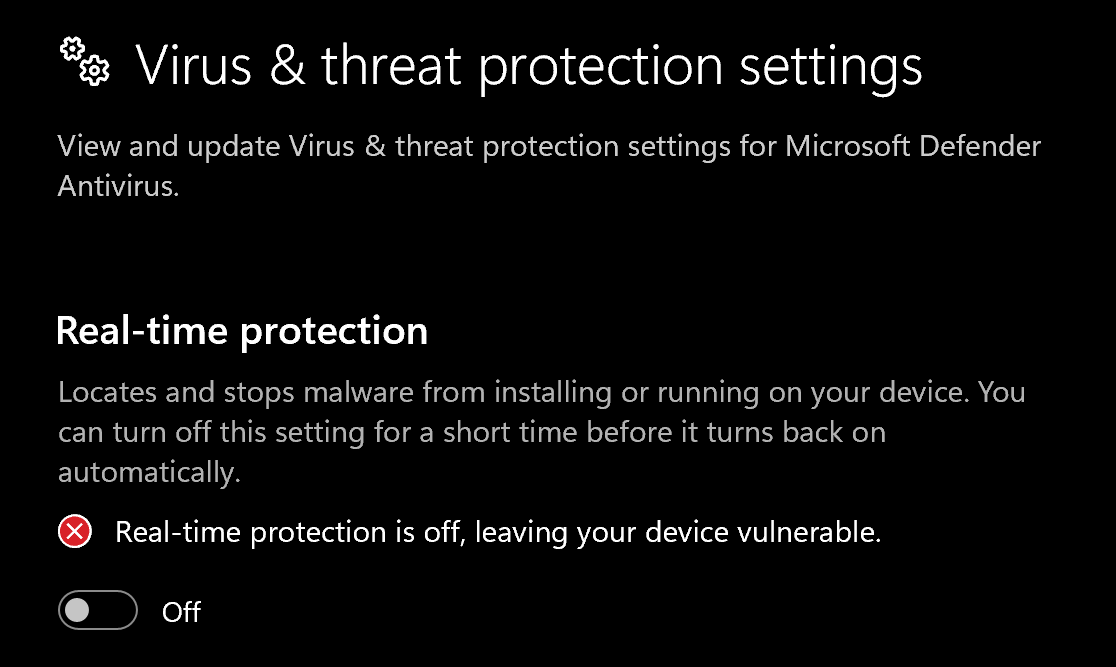
- Go to Virus & threat protection > Manage settings
- Turn off all protection settings:
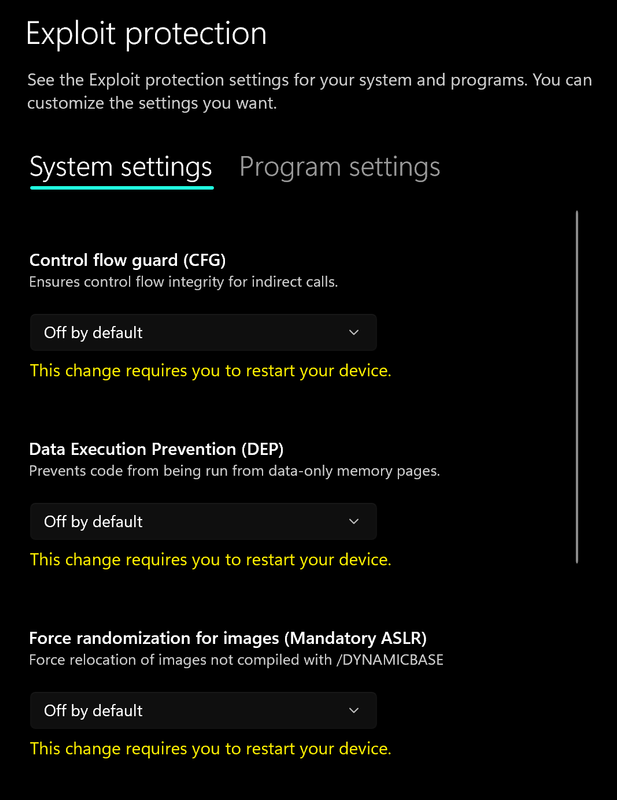
- Go to App & browser control > Exploit protection settings
- Select “off by default” for each option
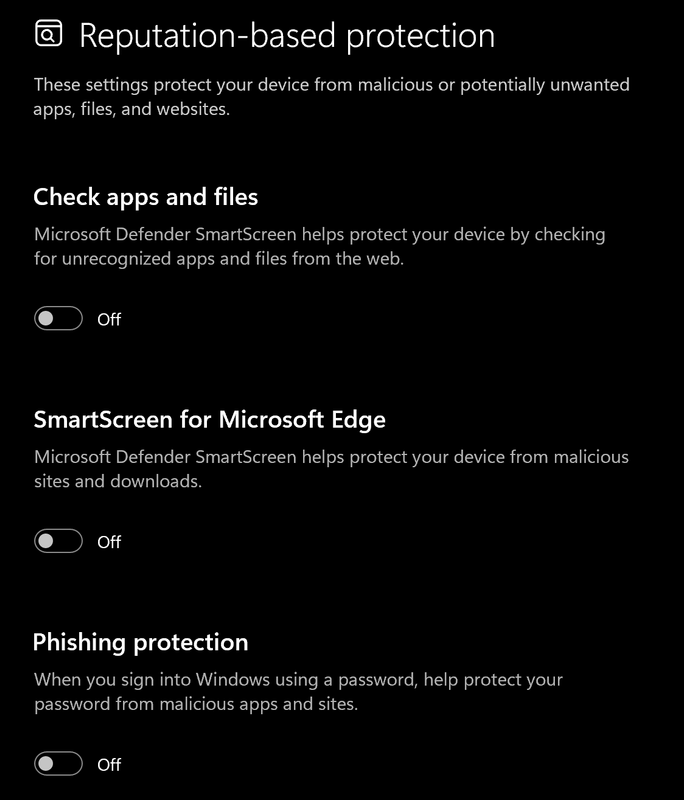
- Go to App & browser control > Reputation-based protection settings
- Turn off all options
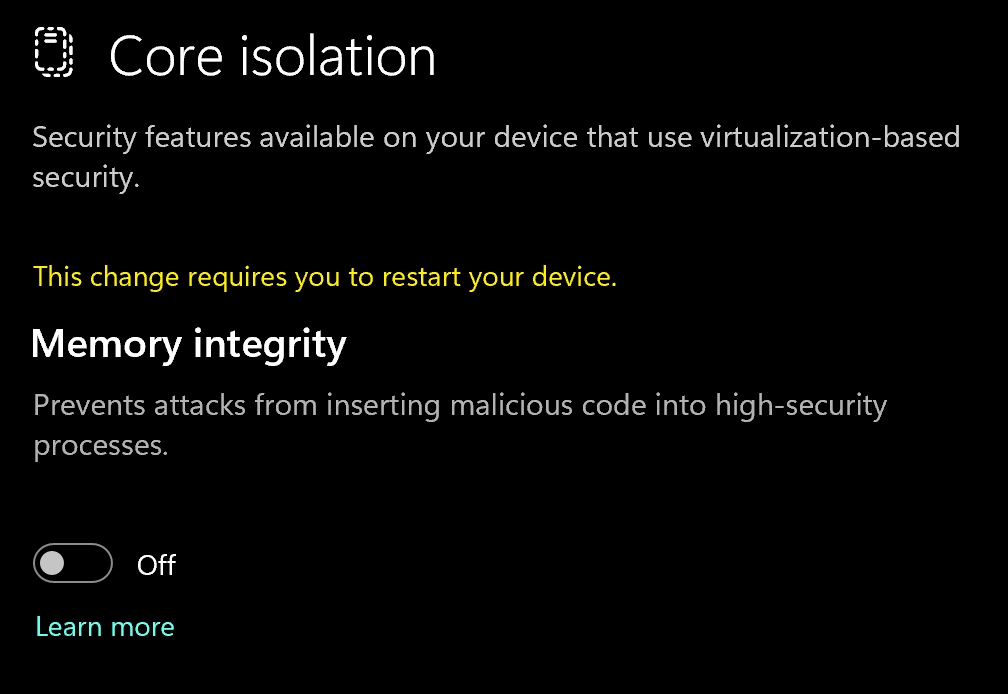
- Go to Device security > Core isolation
- Turn off Memory integrity
Using DControl
If Windows Defender keeps re-enabling, use DControl:- Download WinRar and install it. (Needed to extract archives)
- Download DControl
- Extract the .rar archive with password “sordum”
- Open DControl then press “Disable Windows Defender”
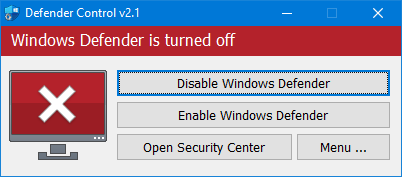
Required Files
https://www.microsoft.com/en-us/download/details.aspx?id=35https://aka.ms/vs/17/release/vc_redist.x64.exe2
Downloading the Cheat
Cheat Loader Download
- Head over to https://vitalitycheats.com/login
- Sign up a new account or log into your existing one.
- Head over to https://vitalitycheats.com/dashboard
- Paste your license key into the “Redeem Key” field
- Click “download loader”
3
Injecting the Cheat
Loading/Injecting
Step 1 - Launch Roblox and join a game.The loader cannot attach to the Home screen. You must be in a live game for it to work.Step 2 - Run the loader as Administrator.
Right-click
VitalityRobloxLoader.exe and select Run as administrator. Enter your license key on first launch.Step 3 - Open the menu.
Press Insert to open the menu and configure your features. Settings save automatically.
Common Errors
Loader Connection Issues?
Loader Connection Issues?
- Download: Cloudflare Warp
- Connect to Warp then try to launch the loader!
Common Errors
Common Errors
- “roblox is not running” — You must be in a live game, not on the Home screen.
- “cannot reach server” — Check your connection. Try connecting through a free VPN like Cloudflare WARP if it persists.
- “auth rejected” — Your key is banned, expired, or HWID-locked. Open a support ticket.
- “offsets are stale” — Roblox pushed an update. Wait for the loader to be updated (usually within a few hours). Your subscription is extended by the downtime.
- Overlay invisible — Alt-tab away from Roblox and back. Roblox uses borderless mode by default, so this is rare.