TIP: To keep things as safe as possible, rely mostly on ESP and only use the more obvious features here and there.
1
Getting Started
Disable Windows Defender
Why is this needed?
Antivirus often flags game cheats as suspicious because they inject code or modify games to enable features like aimbot or ESP. This is normal behavior for all cheat software - not a sign that Noble Cheats is unsafe.
- Open Windows Security
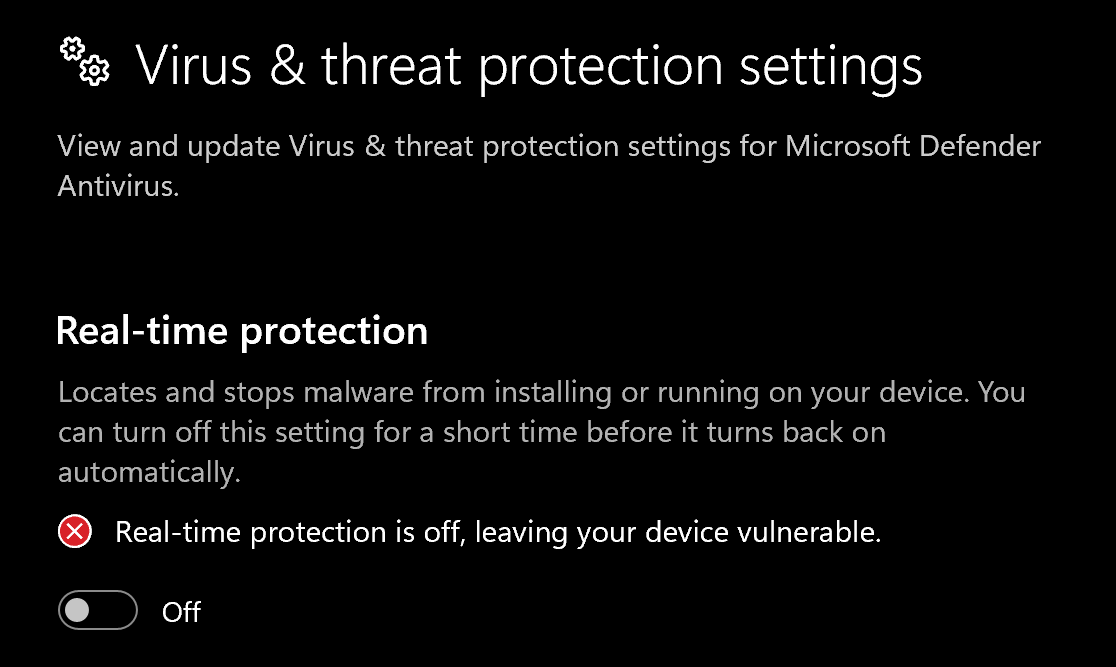
- Go to Virus & threat protection > Manage settings
- Turn off all protection settings:
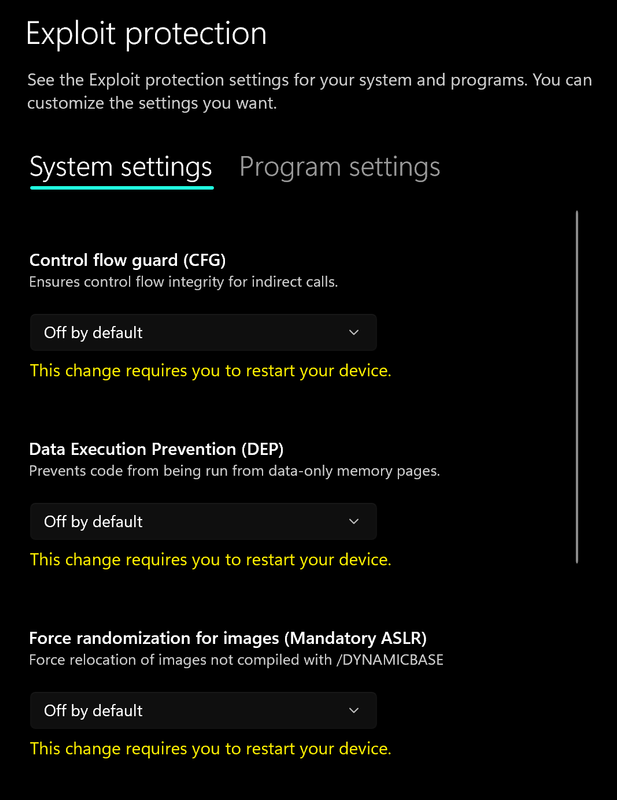
- Go to App & browser control > Exploit protection settings
- Select “off by default” for each option
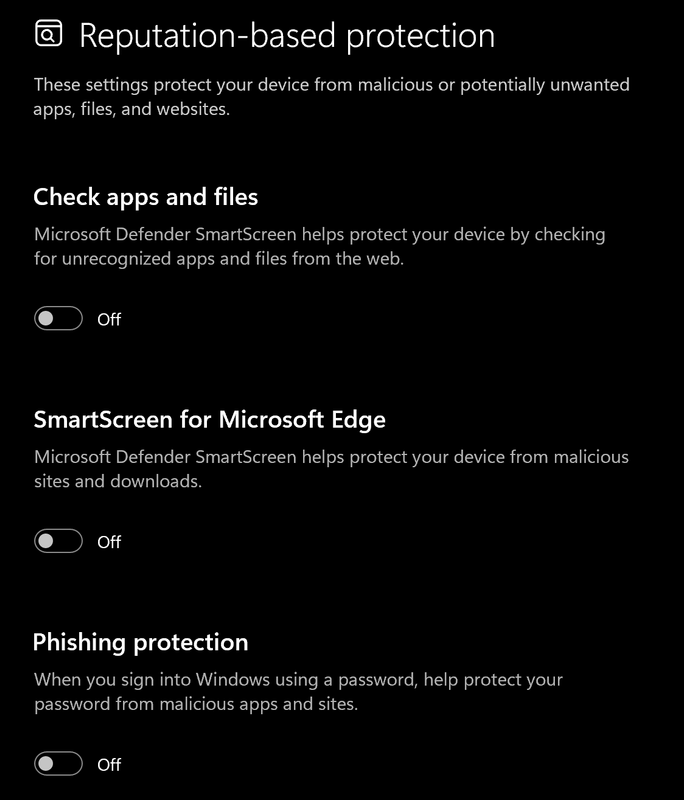
- Go to App & browser control > Reputation-based protection settings
- Turn off all options
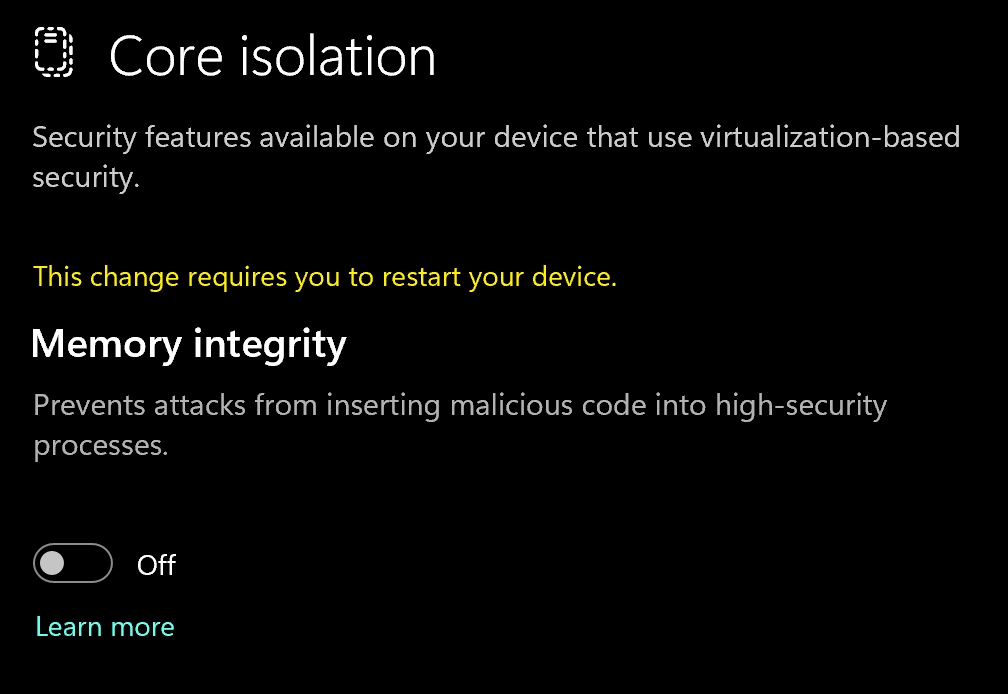
- Go to Device security > Core isolation
- Turn off Memory integrity
Using DControl
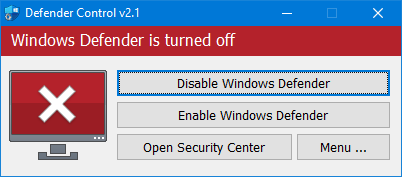
If Windows Defender keeps re-enabling, use DControl:- Download WinRar and install it. (Needed to extract archives)
- Download DControl
- Extract the .rar archive with password “sordum”
- Open DControl then press “Disable Windows Defender”
Required Files
https://www.microsoft.com/en-us/download/details.aspx?id=35https://aka.ms/vs/17/release/vc_redist.x64.exe2
Downloading the Cheat
Cheat Loader Download
- Head over to https://sapphirer6.cc/account
- Sign in with the credentials you received via email or customer panel
- formatKEY:USERNAME:PASSWORD - Then go to https://sapphirer6.cc/dashboard
- Download and run the loader file.
- Wait while the installer completes the setup process.
- When finished, you should see a message similar to:
- Press Enter to close the installer
3
Injecting the Cheat
Loading/Injecting
Read the loader carefully before continuing.Navigate to the installation location by pressing Windows Key + R and pasting the following directory:
%localappdata%/sapphireOpen:loader.exeWhen prompted, paste your key into the loader.Wait for the payload download process to complete.
If you’d rather skip the written setup guide, you can follow this video tutorial instead, which walks you through the injection process step by step:
Common Errors
Loader Connection Issues?
Loader Connection Issues?
- Download: Cloudflare Warp
- Connect to Warp then try to launch the loader!
Skins Are Not Saving After Restarting With Unlock All
Skins Are Not Saving After Restarting With Unlock All
If your skins reset after restarting the game, this is usually caused by Ubisoft Connect’s automatic cloud save synchronization.If this appears, select:
Fix
- Open Ubisoft Connect.
- Click your profile name in the top-right corner.
- Go to Settings.
- Disable:
- Restart Rainbow Six Siege.
- Select the skins you want to use.
- Enter any match (Online or LAN both work).
Online Save Data Error
When launching the game, you may see an:"No Response From Server" Error
"No Response From Server" Error
This error can happen for several reasons. Try the following fixes:Cloudflare WARP DownloadDownload Cloudflare WARP here:https://downloads.cloudflareclient.com/v1/download/windows/gadownloads.cloudflareclient.com
- Disable your firewall temporarily.
- Make sure your Date & Time settings are synchronized.
Connection Troubleshooting Steps
Before opening a support ticket, try the following:- Connect to Cloudflare WARP.
- Ensure WARP is running in UDP mode.
- Keep WARP connected while injecting.
- Launch Rainbow Six Siege.
- Wait until you reach the main menu.
- Disconnect WARP.
- Reconnect to the game servers.
Date & Time Synchronization
Date & Time Synchronization
Make sure your system date and time are correct.To sync your time:Having incorrect date and time settings can prevent the loader from connecting properly.
- Open Windows Settings.
- Go to:
- Enable:
- Press:
If you've launched the game and your skins aren't appearing, try the following:
If you've launched the game and your skins aren't appearing, try the following:
Enable the In-Game Overlay for Supported Games in Ubisoft Connect, then restart the game and check if your skins are visible.
Generate a Support Log
Generate a Support Log
If you’ve been asked to provide a support log, follow these steps:
- Open Command Prompt.
- Run the following command:
Replace {LocalUser} with your Windows username.
- This command will generate a file named
Sapphire_Login your%TEMP%directory.
Sapphire_Log file so we can investigate the issue.