TIP: To keep things as safe as possible, rely mostly on ESP and only use the more obvious features here and there.
1
Getting Started
Disable Windows Defender
Why is this needed?
Antivirus often flags game cheats as suspicious because they inject code or modify games to enable features like aimbot or ESP. This is normal behavior for all cheat software - not a sign that Noble Cheats is unsafe.
- Open Windows Security
- Go to Virus & threat protection > Manage settings
- Turn off all protection settings:
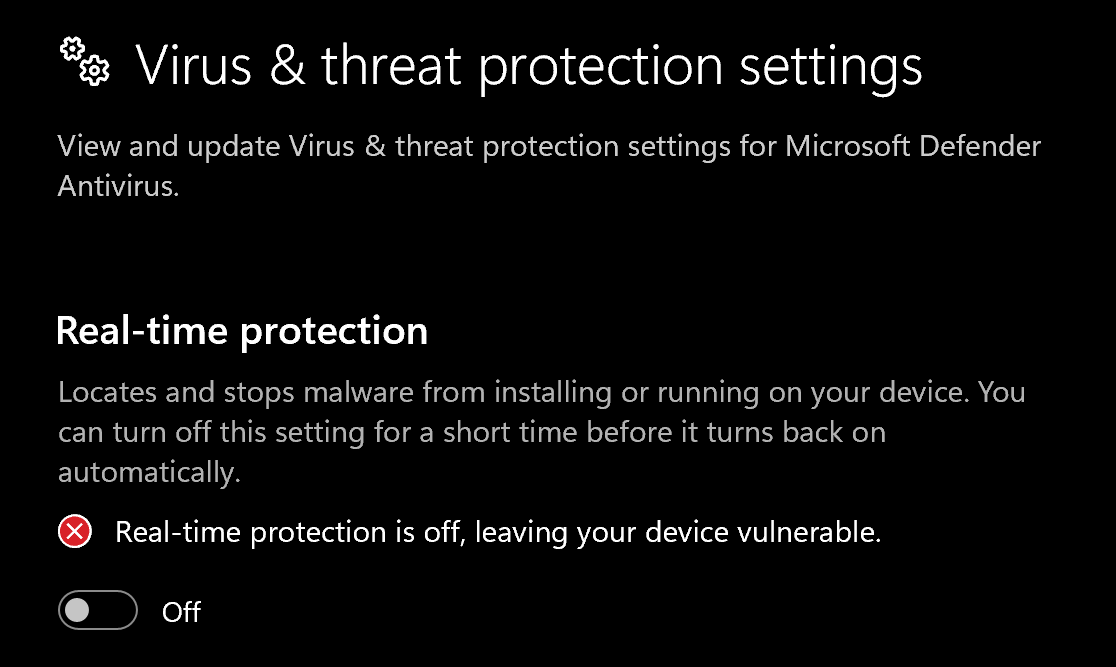
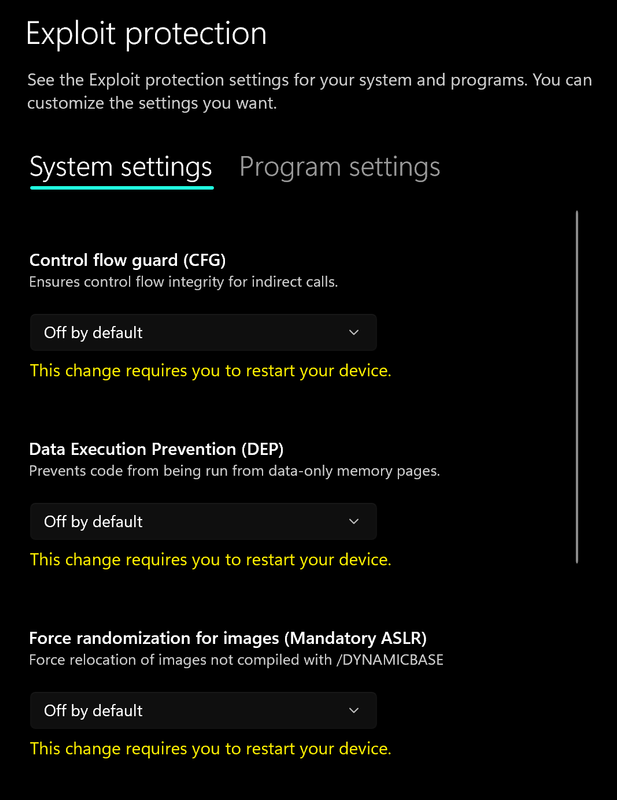
- Go to App & browser control > Exploit protection settings
- Select “off by default” for each option
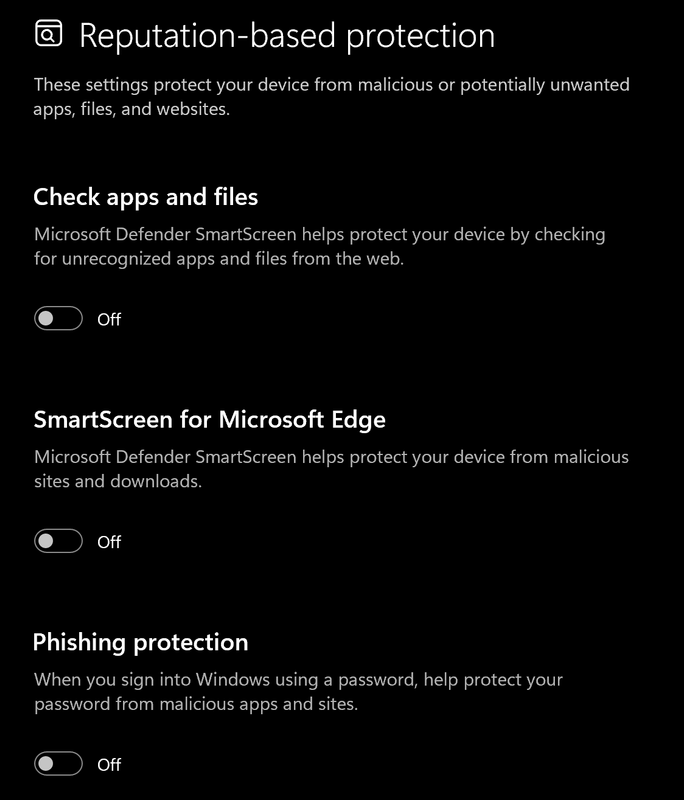
- Go to App & browser control > Reputation-based protection settings
- Turn off all options
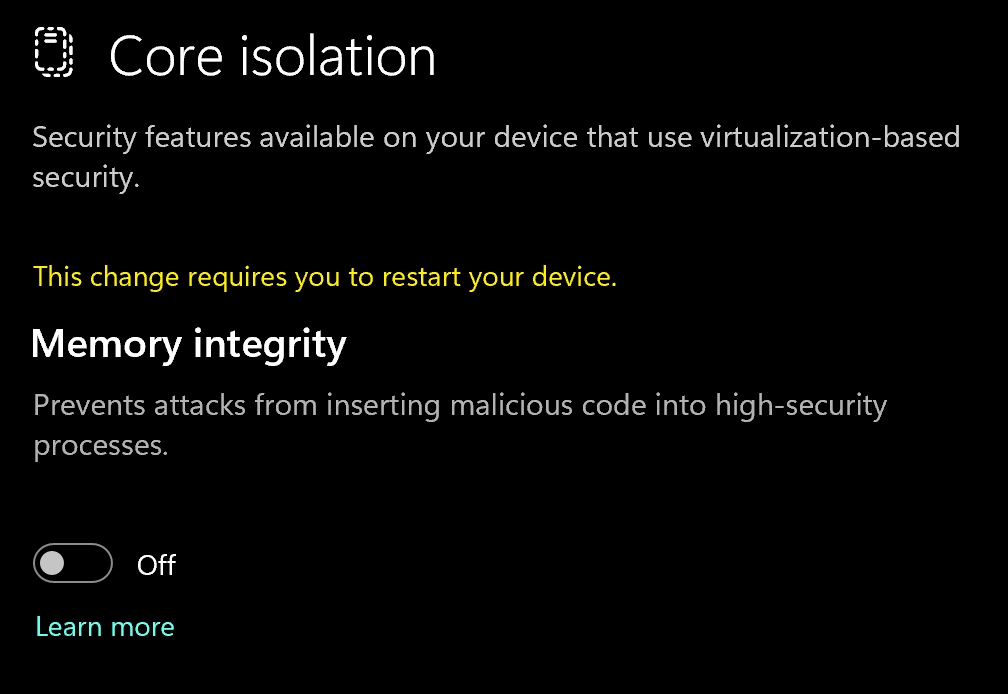
- Go to Device security > Core isolation
- Turn off Memory integrity
Using DControl
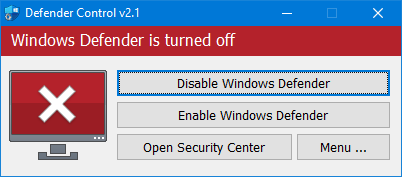
If Windows Defender keeps re-enabling, use DControl:- Download WinRar and install it. (Needed to extract archives)
- Download DControl
- Extract the .rar archive with password “sordum”
- Open DControl then press “Disable Windows Defender”
Required Files
https://www.microsoft.com/en-us/download/details.aspx?id=35https://aka.ms/vs/17/release/vc_redist.x64.exe2
Setting up the Cheat
Overlay Setup
- Install & Run Medal as Administrator. (https://medal.tv/))
Overlay Info
Overlay Info
To have better FPS in games, please disable “Capture Clips” in “Clip Settings”.Note: No matter what you think — the game should be always in “Borderless” or “Windowed” mode. This is the only two display modes that are officially supported.
3
Downloading the Cheat
Cheat Loader Download
You can download the cheat from the link below:https://undetect.net/loader_exodus4
Injecting the Cheat
Loading/Injecting
- Run the loader. Keep focus on the monitor that you need to have overlay on.
- Paste your copied license key by pressing “Right Mouse Button” in loader and click the “Enter” button on your keyboard.
- We have in-built “Cleaner” and “Spoofer”. Loader will ask if you need them every launch (obviously doesn’t happen if you use Spoofer only and it will ask about “Cleaner” only).
- Launch the game once CMD is closed and wait till software menu appear in game main menu (can take up to three minutes)
- Menu key is: INSERT
Common Errors
Loader Connection Issues?
Loader Connection Issues?
- Download: Cloudflare Warp
- Connect to Warp then try to launch the loader!
Hyper-V Issues?
Hyper-V Issues?
Firstly make sure that your PIN, Password or any other Windows login security is disabled.After that, run PowerShell as admin and enter the commands below one by one:
takeown /F "C:\Windows\System32\hvix64.exe"icacls "C:\Windows\System32\hvix64.exe" /grant $(([System.Security.Principal.WindowsIdentity]::GetCurrent()).User.Value):Ftakeown /F "C:\Windows\System32\hvax64.exe"icacls "C:\Windows\System32\hvax64.exe" /grant$(([System.Security.Principal.WindowsIdentity]::GetCurrent()).User.Value):Fdel "C:\Windows\System32\hvix64.exe"del "C:\Windows\System32\hvax64.exe"If the fix above responds with “Access denied” please try PowerShell commands listed below, enter them one by one:Rename-Item "C:\Windows\System32\hvix64.exe" "C:\Windows\System32\hvix64.exe"Rename-Item "C:\Windows\System32\hvax64.exe" "C:\Windows\System32\hvax64.exe"If none of the fixes above work, please disabled SVM/VT-X in BIOS and remove the HV related exe manually and then enable SVM/VT-X back on.Failed to load Driver
Failed to load Driver
If you are getting any errors such as “Injection Error”, “Run process in background”, or “Driver failed to load”, follow these steps:
- Ensure prerequisites are completed:
- Disable Virtualization
- Disable Secure Boot (leave enabled for Valorant)
- Disable TPM:
- Change BIOS mode to UEFI
- Update graphics drivers and Windows
- Ensure Riot Vanguard and antivirus are fully disabled