TIP: To keep things as safe as possible, rely mostly on ESP and only use the more obvious features here and there.
1
Getting Started
Disable Windows Defender
Why is this needed?
Antivirus often flags game cheats as suspicious because they inject code or modify games to enable features like aimbot or ESP. This is normal behavior for all cheat software - not a sign that Noble Cheats is unsafe.
- Open Windows Security
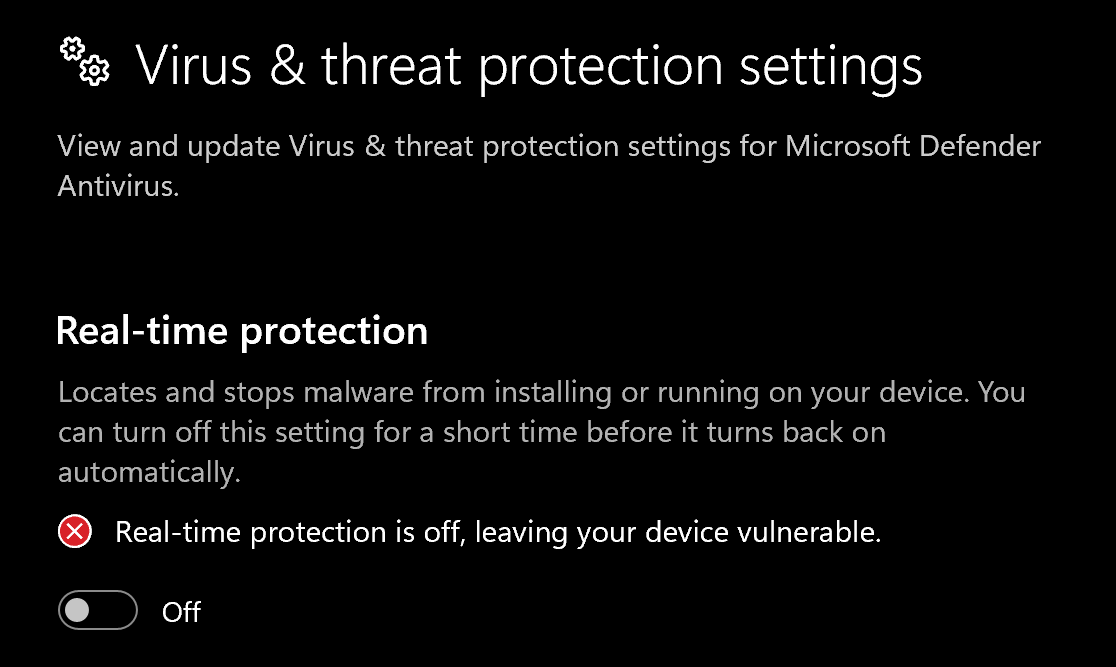
- Go to Virus & threat protection > Manage settings
- Turn off all protection settings:
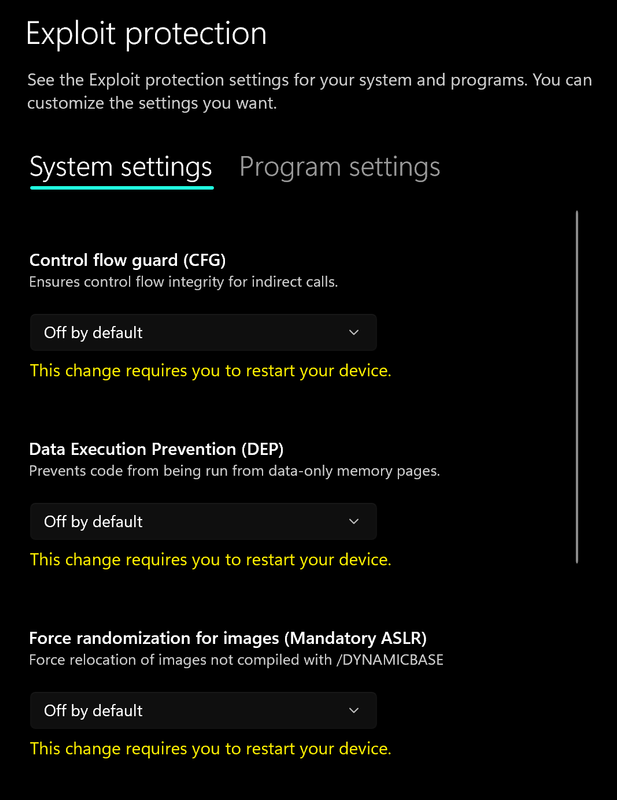
- Go to App & browser control > Exploit protection settings
- Select “off by default” for each option
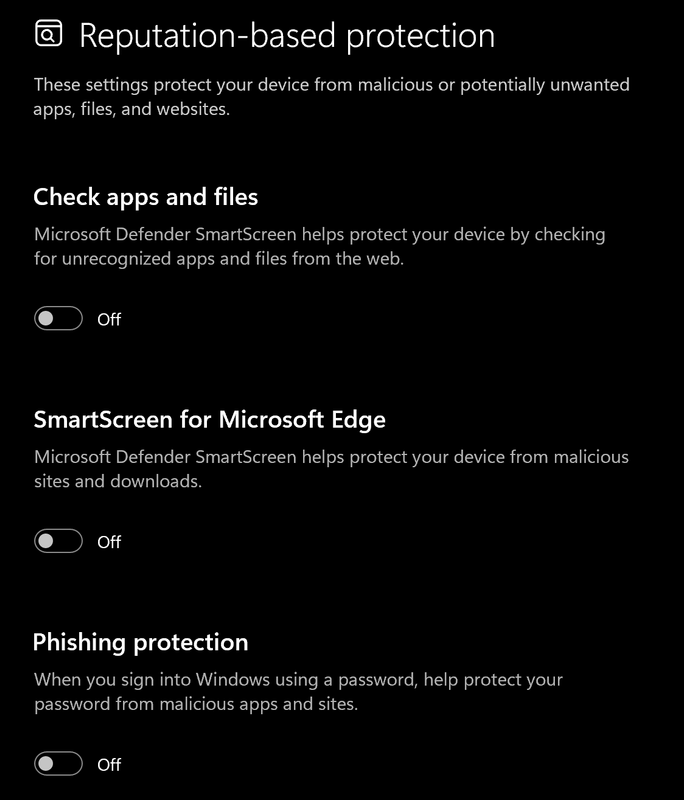
- Go to App & browser control > Reputation-based protection settings
- Turn off all options
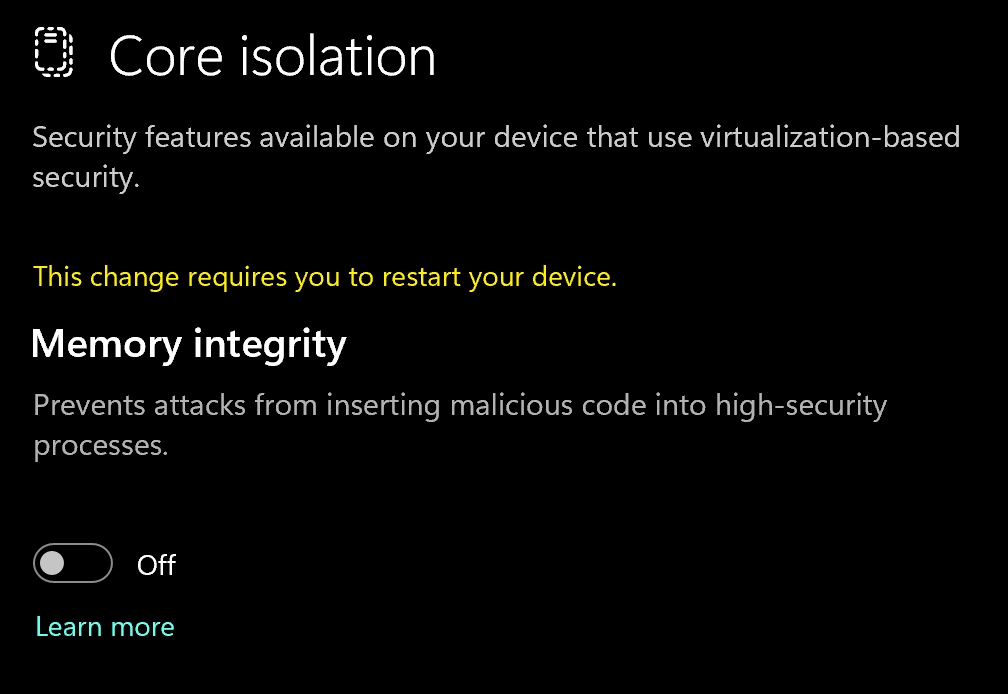
- Go to Device security > Core isolation
- Turn off Memory integrity
Using DControl
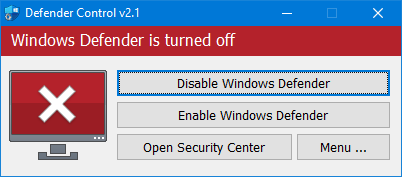
If Windows Defender keeps re-enabling, use DControl:- Download WinRar and install it. (Needed to extract archives)
- Download DControl
- Extract the .rar archive with password “sordum”
- Open DControl then press “Disable Windows Defender”
Required Files
https://www.microsoft.com/en-us/download/details.aspx?id=35https://aka.ms/vs/17/release/vc_redist.x64.exe2
Setting up the Cheat
Overlay Setup
- Close any overlays before launching: Overwolf, SteelSeries GG, Discord Overlay, NVIDIA Overlay, Xbox Game Bar.
- Set the game to Borderless.
3
Downloading the Cheat
4
Injecting the Cheat
Loading/Injecting
- Right-click the Loader and select Run as administrator, then wait for it to finish loading.
- First time: click Register and create a new account. Save your username and password.
Already have an account: click Redeem, sign in, and enter your new key. You don’t need a new account for each key. - Once the dashboard loads, go to Activate License, enter your key, and click Activate.
- Select your game and product, then follow the launch process shown in the Loader.
- Open the game and wait until you are in the Main Menu / Lobby.
- Press F2 when the Loader tells you to, then wait 5–10 seconds for it to initialize.
- Press INSERT to open the menu.
Common Errors
Loader Connection Issues?
Loader Connection Issues?
- Download: Cloudflare Warp
- Connect to Warp then try to launch the loader!
Loader Stuck at "Launching 99% / 100% Success"
Loader Stuck at "Launching 99% / 100% Success"
- Ignore it, load into the game, and press F2. It’s usually only a visual bug.
- If it still doesn’t work, use “If Having Issues” to run the Legacy Loader.
- Still stuck? Contact support.
Unknown Error
Unknown Error
- Restart your PC.
- Check that VC++ Runtime x64 and DirectX are installed.
- Check whether Windows Security or your antivirus quarantined a product file.
- Reopen the launcher and launch normally.
- If it persists, contact support with the exact error.
Initialization Failure / Loader Exit With Error Code 1
Initialization Failure / Loader Exit With Error Code 1
- Go to Settings → Time & Language → Date & Time.
- Turn on Set time automatically, then click Sync now.
- If the product requires it, set the timezone to UTC+1 (Rome / Berlin) or use a VPN (TunnelBear).
- Revert those changes afterward if they weren’t needed.
Window Not Found / Error Code 0xE9D52
Window Not Found / Error Code 0xE9D52
- Restart your PC.
- Run Medal as administrator and let it fully load.
- Disable the Medal overlay (top-left toggle). Medal itself can stay open.
- Enable the Discord overlay for the game, and confirm it actually shows in-game. Make sure Legacy Overlay is off.
- Launch the game, go to the Main Menu, press F2, and wait 5–10 seconds.
- Still failing? Try the Legacy Loader, then contact support.
Overlay Not Clickable
Overlay Not Clickable
- Reinstall Medal, restart your PC, open Medal, then launch the game.
- Keep only the overlay your setup needs running (Discord / Medal / Overwolf / SteelSeries / NVIDIA / Xbox Game Bar).
- Open Task Manager. If CPU or RAM sits at 90–100%, close heavy background apps.
Initialization Failure: Process Terminated
Initialization Failure: Process Terminated
- Restart your PC.
- Close any debugging, virtualization, or system-analysis tools.
- Check that no product files were quarantined.
- Re-check the Getting Started setup steps, then relaunch.
- If it persists, contact support with the exact error, product, key, and logs.
Initialization Failure: Failed to Create TMP File
Initialization Failure: Failed to Create TMP File
- Re-check the Getting Started setup steps.
- Restart your PC, then open the launcher and retry.
- Press Win + R, type
%temp%, and confirm the folder opens normally. - If it persists, contact support.
"Please Restart Your PC" Looping
"Please Restart Your PC" Looping
- Make sure virtualization is enabled in BIOS (see your motherboard docs).
- Make sure Hyper-V is available (Hyper-V Enabler).
- Restart, open the launcher, and retry.
- If it keeps looping, contact support. Don’t keep changing BIOS settings.
EFI Partition Could Not Be Mounted
EFI Partition Could Not Be Mounted
- Press Win + R, type
msinfo32, and check BIOS Mode. - It must say UEFI. If it says Legacy, your system doesn’t meet the requirement.
- Do not switch Legacy to UEFI in BIOS on an existing install. Windows may not boot.
- Already on UEFI? Restart and retry. If it persists, contact support.
Blue Screen (BSOD)
Blue Screen (BSOD)
- Let the PC reboot. Don’t immediately reproduce the crash.
- Grab
C:\Windows\MEMORY.DMP. If it’s missing, take the newest.dmpfromC:\Windows\Minidump. - No dump at all? Press Win + R, type
sysdm.cpl, go to Advanced → Startup and Recovery → Settings, and set Automatic or Kernel memory dump. Then restart. - Upload the dump to gofile.io and copy the link.
- Send support your product, license key, stop code, the Gofile link, and what you were doing. A screenshot alone isn’t enough.