> ## Documentation Index
> Fetch the complete documentation index at: https://docs.noblecheats.net/llms.txt
> Use this file to discover all available pages before exploring further.
# Eclipse
> This guide is split into easy step-by-step sections for a smooth and successful setup.
Please follow all instructions carefully. Skipping steps may cause the setup to fail.
**TIP:** To keep things as safe as possible, rely mostly on ESP and only use the more obvious features here and there.
***
## Disable Windows Defender
Antivirus often flags game cheats as suspicious because they inject code or modify games to enable features like aimbot or ESP. This is normal behavior for all cheat software - not a sign that Noble Cheats is unsafe.
1. Open Windows Security
2. Go to **Virus & threat protection** > **Manage settings**
3. Turn off all protection settings:
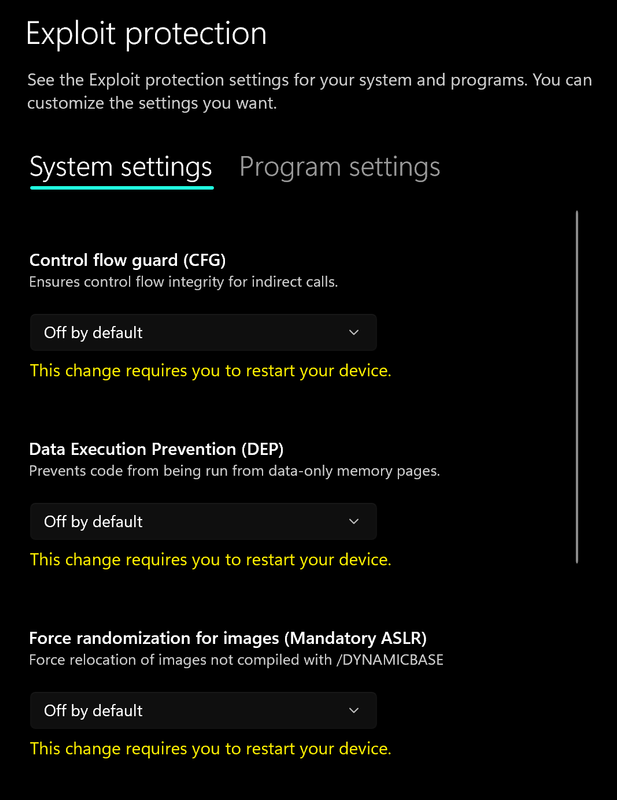
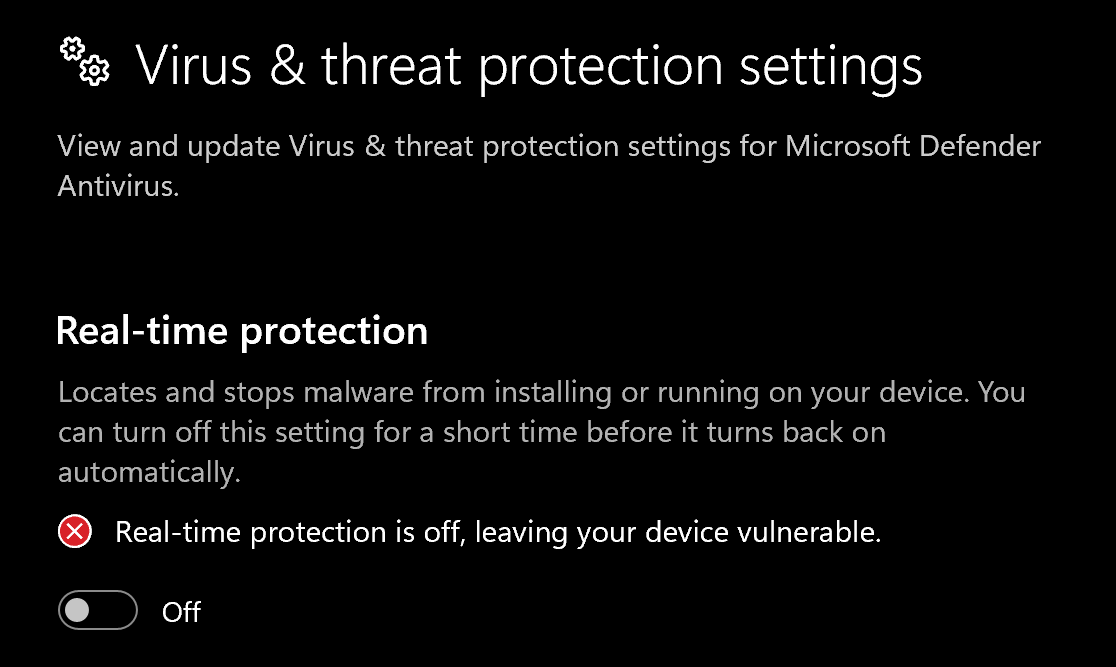 4. Go to **App & browser control** > **Exploit protection settings**
5. Select **"off by default"** for each option
4. Go to **App & browser control** > **Exploit protection settings**
5. Select **"off by default"** for each option
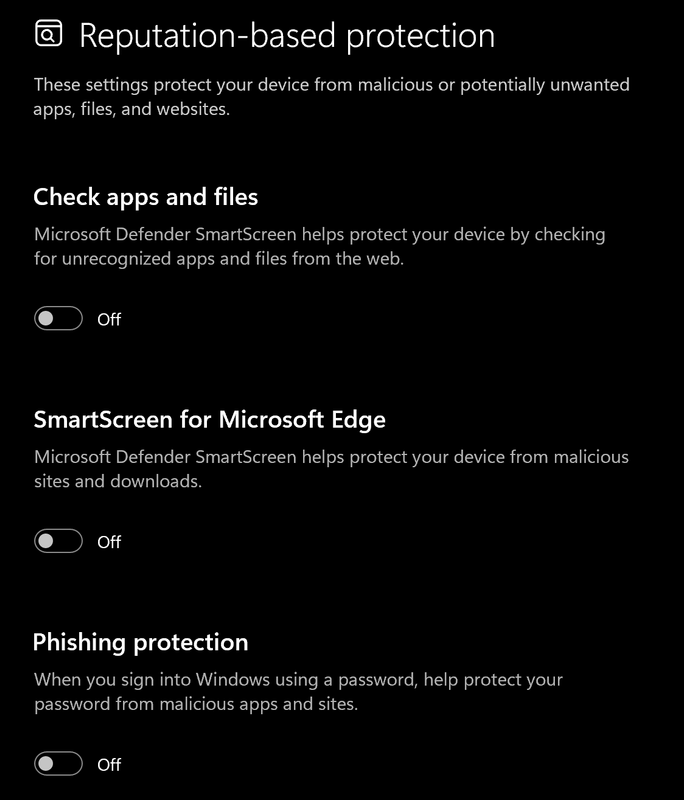
 6. Go to **App & browser control** > **Reputation-based protection settings**
7. Turn off all options
6. Go to **App & browser control** > **Reputation-based protection settings**
7. Turn off all options
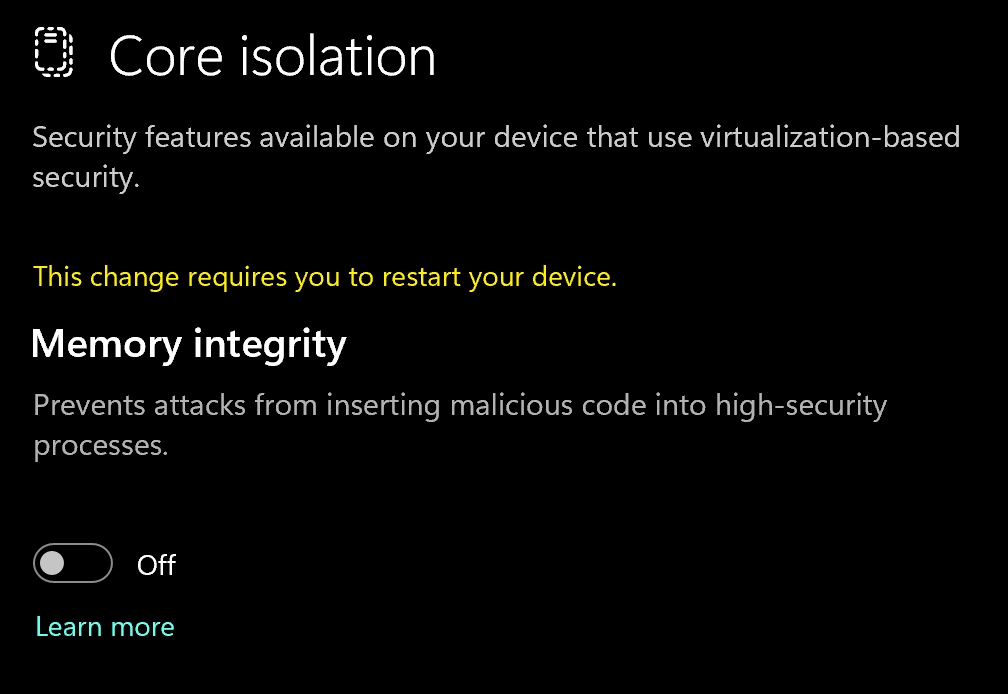
 8. Go to **Device security** > **Core isolation**
9. Turn off **Memory integrity**
8. Go to **Device security** > **Core isolation**
9. Turn off **Memory integrity**
 ### Using DControl
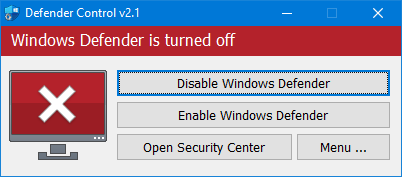
If Windows Defender keeps re-enabling, use DControl:
1. Download [WinRar](https://www.win-rar.com/download.html?\&L=0) and install it. *(Needed to extract archives)*
2. Download [DControl](https://www.sordum.org/files/downloads.php?st-defender-control)
3. Extract the .rar archive with password **"sordum"**
4. Open DControl then press **"Disable Windows Defender"**
### Using DControl
If Windows Defender keeps re-enabling, use DControl:
1. Download [WinRar](https://www.win-rar.com/download.html?\&L=0) and install it. *(Needed to extract archives)*
2. Download [DControl](https://www.sordum.org/files/downloads.php?st-defender-control)
3. Extract the .rar archive with password **"sordum"**
4. Open DControl then press **"Disable Windows Defender"**
 ### Required Files
[https://www.microsoft.com/en-us/download/details.aspx?id=35](https://www.microsoft.com/en-us/download/details.aspx?id=35)
[https://aka.ms/vs/17/release/vc\_redist.x64.exe](https://aka.ms/vs/17/release/vc_redist.x64.exe)
## Overlay Setup
1. Install & Run Medal as Administrator. ([https://medal.tv/](https://medal.tv/)))
To have better FPS in games, please disable "Capture Clips" in "Clip Settings".
Note: No matter what you think — the game should be always in "Borderless" or "Windowed" mode. This is the only two display modes that are officially supported.
## Cheat Loader Download
You can download the cheat from the link below:
[https://undetect.net/loader\_exodus](https://undetect.net/loader_exodus)
## Loading/Injecting
1. Run the loader. Keep focus on the monitor that you need to have overlay on.
2. Paste your copied license key by pressing "**Right Mouse Button**" in loader and click the "**Enter**" button on your keyboard.
3. We have in-built "**Cleaner**" and "**Spoofer**". Loader will ask if you need them every launch (obviously doesn't happen if you use Spoofer only and it will ask about "**Cleaner**" only).
4. Launch the game once CMD is closed and wait till software menu appear in game main menu (can take up to three minutes)
* Menu key is: **INSERT**
***
## Common Errors
1. Download: [Cloudflare Warp](https://one.one.one.one/)
2. Connect to Warp then try to launch the loader!
Firstly make sure that your PIN, Password or any other Windows login security is disabled.
After that, run PowerShell as admin and enter the commands below one by one:
`takeown /F "C:\Windows\System32\hvix64.exe"`
`icacls "C:\Windows\System32\hvix64.exe" /grant $(([System.Security.Principal.WindowsIdentity]::GetCurrent()).User.Value):F`
`takeown /F "C:\Windows\System32\hvax64.exe"`
`icacls "C:\Windows\System32\hvax64.exe" /grant$(([System.Security.Principal.WindowsIdentity]::GetCurrent()).User.Value):F`
`del "C:\Windows\System32\hvix64.exe"`
`del "C:\Windows\System32\hvax64.exe"`
If the fix above responds with "**Access denied**" please try PowerShell commands listed below, enter them one by one:
`Rename-Item "C:\Windows\System32\hvix64.exe" "C:\Windows\System32\hvix64.exe"`
`Rename-Item "C:\Windows\System32\hvax64.exe" "C:\Windows\System32\hvax64.exe"`
If none of the fixes above work, please disabled SVM/VT-X in BIOS and remove the HV related exe manually and then enable SVM/VT-X back on.
CHECK STATUS OF CHEAT!!
1. Check if the cheat is currently undetected or requires update
2. Reinstall overlay (Steam or RivaTuner)
3. Use correct overlay based on instructions
4. Close the menu – features may not show while it is open
If you are getting any errors such as "**Injection Error**", "Run process in background", or "**Driver failed to load**", follow these steps:
1. Ensure prerequisites are completed:
[https://loader-instructions.gitbook.io/loader-instructions](https://loader-instructions.gitbook.io/loader-instructions)
2. Disable Virtualization
3. Disable Secure Boot (leave enabled for Valorant)
4. Disable TPM:
[https://knowledge.workspace.google.com/kb/disable-trusted-platform-module-000002212](https://knowledge.workspace.google.com/kb/disable-trusted-platform-module-000002212) (leave enabled for Valorant)
5. Change BIOS mode to UEFI
6. Update graphics drivers and Windows
7. Ensure Riot Vanguard and antivirus are fully disabled
***
## Need Help?
If you're stuck on something, unsure about a step, or seeing an error, reach out to our support team for support.
[https://noblecheats.net/web-support/](https://noblecheats.net/web-support/)
### Required Files
[https://www.microsoft.com/en-us/download/details.aspx?id=35](https://www.microsoft.com/en-us/download/details.aspx?id=35)
[https://aka.ms/vs/17/release/vc\_redist.x64.exe](https://aka.ms/vs/17/release/vc_redist.x64.exe)
## Overlay Setup
1. Install & Run Medal as Administrator. ([https://medal.tv/](https://medal.tv/)))
To have better FPS in games, please disable "Capture Clips" in "Clip Settings".
Note: No matter what you think — the game should be always in "Borderless" or "Windowed" mode. This is the only two display modes that are officially supported.
## Cheat Loader Download
You can download the cheat from the link below:
[https://undetect.net/loader\_exodus](https://undetect.net/loader_exodus)
## Loading/Injecting
1. Run the loader. Keep focus on the monitor that you need to have overlay on.
2. Paste your copied license key by pressing "**Right Mouse Button**" in loader and click the "**Enter**" button on your keyboard.
3. We have in-built "**Cleaner**" and "**Spoofer**". Loader will ask if you need them every launch (obviously doesn't happen if you use Spoofer only and it will ask about "**Cleaner**" only).
4. Launch the game once CMD is closed and wait till software menu appear in game main menu (can take up to three minutes)
* Menu key is: **INSERT**
***
## Common Errors
1. Download: [Cloudflare Warp](https://one.one.one.one/)
2. Connect to Warp then try to launch the loader!
Firstly make sure that your PIN, Password or any other Windows login security is disabled.
After that, run PowerShell as admin and enter the commands below one by one:
`takeown /F "C:\Windows\System32\hvix64.exe"`
`icacls "C:\Windows\System32\hvix64.exe" /grant $(([System.Security.Principal.WindowsIdentity]::GetCurrent()).User.Value):F`
`takeown /F "C:\Windows\System32\hvax64.exe"`
`icacls "C:\Windows\System32\hvax64.exe" /grant$(([System.Security.Principal.WindowsIdentity]::GetCurrent()).User.Value):F`
`del "C:\Windows\System32\hvix64.exe"`
`del "C:\Windows\System32\hvax64.exe"`
If the fix above responds with "**Access denied**" please try PowerShell commands listed below, enter them one by one:
`Rename-Item "C:\Windows\System32\hvix64.exe" "C:\Windows\System32\hvix64.exe"`
`Rename-Item "C:\Windows\System32\hvax64.exe" "C:\Windows\System32\hvax64.exe"`
If none of the fixes above work, please disabled SVM/VT-X in BIOS and remove the HV related exe manually and then enable SVM/VT-X back on.
CHECK STATUS OF CHEAT!!
1. Check if the cheat is currently undetected or requires update
2. Reinstall overlay (Steam or RivaTuner)
3. Use correct overlay based on instructions
4. Close the menu – features may not show while it is open
If you are getting any errors such as "**Injection Error**", "Run process in background", or "**Driver failed to load**", follow these steps:
1. Ensure prerequisites are completed:
[https://loader-instructions.gitbook.io/loader-instructions](https://loader-instructions.gitbook.io/loader-instructions)
2. Disable Virtualization
3. Disable Secure Boot (leave enabled for Valorant)
4. Disable TPM:
[https://knowledge.workspace.google.com/kb/disable-trusted-platform-module-000002212](https://knowledge.workspace.google.com/kb/disable-trusted-platform-module-000002212) (leave enabled for Valorant)
5. Change BIOS mode to UEFI
6. Update graphics drivers and Windows
7. Ensure Riot Vanguard and antivirus are fully disabled
***
## Need Help?
If you're stuck on something, unsure about a step, or seeing an error, reach out to our support team for support.
[https://noblecheats.net/web-support/](https://noblecheats.net/web-support/)